Load youtube quickly with firefox add-on
 When you load youtube, sometimes it very slow. There're many way to load youtube quickly. Today I recommend a add-on of firefox help you load youtube fast.
Step1: Download Add-on here (compatible with Firefox3)
Install and restart firefox
Step2: Go Tool -> Add-ons -> Extension
You'll see Better Youtube, click Option Select
Youtube Alternate Video Player(No autoplay)
Youtube Download:
Don't forget to subscribe to get more tutorials !
New del.icio.us Bookmarks Extension for Firefox
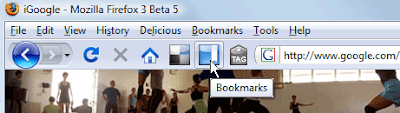
If you have moved to Firefox 3, download this new del.icio.us bookmarks extension for Firefox 3 . This is also compatible with the previous version of Firefox.
Other than the regular bookmarking features, this add-on will show new del.icio.us links for you and any network activity in the Firefox Status bar itself. From delicious blog.
Now, easy to add a content from a website to your bookmark !
Open many Gmail, Yahoo accounts with firerox
 Some users of webmail services (example Google, Yahoo, Hotmails..) have more than one web account to log into. People are using each web account for different purposes but they can't login to the same site at the same time in the same browser.
This tutorials show you hot to login more than 1 account with your Firefox.
1. Use many Browser
I think this easy way to open many accounts. You can use Firefox, Internet Explore, Opera..
2. Use Extension CookiePie Firefox
Cookies auto save you Setting, so you don't need login again. If we separate cookies we can open many accounts.
CookiePie is one add-on that can help we.
3. Use add-on Gmail Manager Firefox 4. Use IE Tab Firefox Extension
Useful Firefox Extensions To Print Web Pages
If you like to save a web pages and print them while surfing, Aardvark is the must have Firefox Add-ons for you. Previously i write a post about how to save a web pages as a picture format (.jpg) using free online service.This is much more advanced compare to it.
What is Aardvark?
Powerful and user-friendly selector utility for selecting elements and doing various actions on them. It can be used for cleaning up a page prior to printing it (by removing and isolating elements), for making the page more readable..Basically Aardvark help you to save your printer's ink and pages by removing the unwanted elements on the web pages. I will guide you step by step on how to do this. Firstly install Aardvark Firefox Add-ons Go to web page that you want to print and right click. Then choose to start Aardvark.As you mouse over the page, you will see a red rectangle around the current block element, together with a label showing its type,id, class, and style. You can minimise the web page by removing certain elements. What you have to do is click R to remove the element See my example.


W to navigate wider
R to remove the element
I to isolate the element
V to view formatted source of that element
U to undo
Q to quit
H for help
Latest Firefox with fix for Cross Site Scripting (XSS)
Cross Site Scripting was one of the major security threat faced by internet users. This security vulnerability may be exploited to allow code injection by malicious web users into the web pages viewed by other users.
Now Firefox users can stay safe as this vulnerability has been fixed in the latest release of the Firefox web browser. There are couple of other security fixes that are made in the latest release, Firefox 2.0.0.12.
Its another reason to switch to Firefox, for non Firefox users and time to update your web browser for old Firefox users.
Integrate Facebook and Firefox with Facebook Toolbar
 Facebook is one of the hottest Social Networking website on the internet. Facebook became much more famous and admired by many people after the release of their Facebook Platform. The Platform provides an environment for interested Facebook users to develop their on web applications in Facebook, and there by extending the functionalities of Facebook.
Now, Dorian Patterson has come up with a toolbar for Firefox web browser, to help Facebook users. The new Facebook Firefox toolbar can be used to search Facebook, get notified upon new pokies, get alert on new friend requests and message alerts. Also this toolbar helps to get connected with your Facebook friends and share contents with them. Sounds so cool?. Download the Facebook Toolbar for Firefox browser.
Quickly Restart Firefox
A really quickie quick tip here. Probably it’s me just playing catch-up to all those great Firefox extensions that we’ve failed to feature just before Mozilla unleashes version 3 of our favorite browser. QuickRestart gives you the functionality of restarting Firefox in just one click. Installing this add-on gives you a few options on how to initiate the restart. You can go choose it in the menu, customize your toolbars to feature the restart button, and my favorite, just press the keyboard shortcut (Ctrl+Alt+R). Download QuickRestart add-on here.
Basic functionality with this one and quite sadly a unitasker. But what a useful unitasker this is. Ever had to restart Firefox? That means closing the Firefox window and then clicking/double-clicking your shortcut to Firefox somewhere (and God-forbid deep in the Start Menu).
Undo Close Tab in Firefox quickly
 I just found an interesting feature in Firefox 2. If you have an open tab, then close it, you can right-click the tabs and choose 'Undo Close Tab' and the banished tab will return.
Update:
Jim Priest, who turned me on to the Microsoft Update Reboot Fix points out that the following key combos work:
CTRL+T = new tab
CTRL+SHIFT+T = restore last closed tab
I've use CTRL+T countless times. It never dawned on me to try CTRL+SHIFT+T. Thanks again Jim!
Hide the Tab Bar in Firefox
Firefox brought us perhaps the real best thing since sliced bread - tabbed browsing. Now why the heck should you hide the precious thing? I’d have to admit that I used to think that I’d rather not browse the web at all if I have to go back to the days of IE6 and the tabless browsing world but hiding the tab bar has a few perks. Quite unimaginable? Not quite. So I digress with the point of hiding the tab bar. I tried it out and I’d have to say that it put a really big crimp on my browsing behavior. A test of will of sorts not to browse multiple sites at the same time. So what good did this do? It gave me focus on the tasks at hand. Much like using minimalist word processors, the limited functionality prevented me from pointless multitasking. So for those looking for an extra boost of productivity, try hiding your tab bar. Why not just fire up the old tabless IE 6? No thanks.
Hide Tab Bar is an add-on that gives you the option to hide your tab bar. Check the View menu and you’ll find out that Firefox doesn’t let you touch its precious appendage. The add-on gives you the hide function either via menu or keyboard shortcut.
Save YouTube Videos with VideoDownloader with Firefox
So you’re a fan of those viral videos and YouTube stuff that you’d want to save them for you to view over and over and over. Problem is, there’s no “Save as” function for embedded videos and that YouTube screen would just show Flash Player details. Here’s what you can do:

- Get the Firefox VideoDownloader Add-on
Add-ons are a great feature of Firefox. It allows you to install small applications (widgets) to work with Firefox to do more tasks that Firefox can’t do alone (yeah, there are quite a handful). Like Firefox, they’re free! The VideoDownloader add-on is one of them. You can get it here.
And here’s a cool instructional video on how to use it.
- Saving and Playback
Using VideoDownloader, you’d easily be able to save embedded videos. You can now play them as video files on your PC using your preferred media player.
If you happen to download Youtube videos, you might be saving FLV files (or VideoDownloader may prompt you to change the file extension as such).
To play back FLV files offline, you need an FLV player like nFLV Player. It’s freeware!
How to undo accidentally closed tabs in Firefox
Luckily there’s a cool Firefox add-on that you can use to bring back or undo a closed tab immediately! Undo Closed Tabs Button allows you to undo closed tabs via a toolbar button, via the right-click context menu, or via a shortcut on your keyboard! It makes it super easy to bring back any previously closed tab.  Don’t you just hate it when have 10 open tabs in Firefox and you decide to close a few out because they are starting to take up too much space, but you end up accidentally closing out a tab that you actually needed? More than not, you have to go to the History tab and then find the site that you were on, which may or may not be at the top of the history list.
Once installed, you can add the button to your toolbar by going to View, then Toolbars and then Customize. Simply drag and drop the icon to your toolbar. Now when you click on the toolbar button, you will see a list of the previously closed tabs. Note this is not a list of previously visited sites, but of what was the last page loaded before a tab was closed.
You can also right click on any empty space in the browser window and choose "Undo last Closed Tab" to bring back the last closed tab. The keyboard shortcut for bringing back a closed tab is Alt + Z.
The add-on has more options that you can configure by going to Tools, then Add-ons, then select Undo Closed Tabs Button and choose Options. You can change the keyboard shortcut or remove the context menu item if desired.
Overall, it’s very useful for anyone who has accidentally closed a tab before! Check it out!
Customize Firefox Web Page Appearance
Many sites use frames to display their contents, and sometimes the frames are too small. To force all frames to be resizable, add the following code to your user.js file: Note that this will also make the frames appear with a fixed-width border and thus, may make the pages look funny. Customize Firefox
Advertisements on websites are annoying, often breaking up text and flashing to get your attention. There is a neat trick that you can use to block most of the ads on Web pages.
Because of the length of the code in this tip, it is available in a separate page.
Disable blinking elements
You probably just find the blinking above annoying. To stop it, add the following code to your user.js file:
// Put an end to blinking text!
user_pref("browser.blink_allowed", false);
Disable marquee tags
Some sites using scrolling marquee tags. If you don't find them useful, add the following code to your userContent.css file:
/* Stop those tags! */
marquee {
-moz-binding : none !important;
display : block;
height : auto !important;
}
Force frames to be resizable
This neat trick will change the mouse pointer when you hover it over links that will open a new window. Add the following code to your userContent.css file:// Force frames to be resizable
user_pref("layout.frames.force_resizability", true);
/* Change cursor for links that open in new window */
:link[target="_blank"], :visited[target="_blank"],
:link[target="_new"], :visited[target="_new"] {
cursor: crosshair;
}
Change the cursor for JavaScript links
This tip will change the mouse pointer when you hover it over links that will perform a JavaScript command. Add the following code to your userContent.css file:
/* Change cursor for JavaScript links */
a[href^="javascript:"] {
cursor: move;
}
Download Firefox: GetFirefox
Source : Mozilla.org
Firefox Search Bar Hacks
 Mozilla's secret cash cow or the Firefox Search Bar in the upper-right corner, sitting next to the address bar, is one of the most frequently used feature inside Firefox.
You can do a lot of tweaking to the Firefox search bar like Add new search engines, delete unused search engines, change the order of search engines, delete autocomplete, change the default search engine or even resize the width of the search bar. We discuss each tip in detail here (also applicable to Flock):
How to add a new search engine to Firefox search bar ?
The Firefox Search bar comes pre-loaded with Google, Yahoo, Amazon, eBay, Answers.com, and Creative Commons search. If you'd like to add more search engines to the search bar, click on a search engine name here or browse the full directory of search engine plug-ins at mycroft. Alternatively, click the down arrow next to the G in the search box, and choose Add Engines.
How do I remove a search engine from Firefox search bar ?
To Uninstall a Firefox search plugin, open the searchplugins folder situated in the Mozilla Firefox 1.5 installation directory (C:\Program Files\Mozilla Firefox\). Sort the entire folder by name so that files selected with any search engine stay together at one place.
Delete both .src and .gif or .png search plugin files for the search engine you want to remove. For example, to remove the eBay search engine, you would delete the files "ebay.src" and "ebay.gif". Restart Firefox and the search engine will be deleted forever. Any custom search engines may be located in the Firefox Profile folder inside Windows Application Data folder.
There's even a Firefox extension for uninstalling Firefox search plugins - just right click on a search plugin and choose Delete.
How do I rearrange the order of search engines in Firefox ?
Search engines are added to Firefox search bar at the bottom. As your list of search engine grows, you may want to sort the order and place the maximum used search engine at the top. Here's how change the order in which the engines are shown in the Firefox search bar.
Type about:config in the Firefox location bar.
Type browser.search.order in the filter.
Now change the values as you wish to reorder.
For example, to make Yahoo as the top engine and Google just next, make the following changes:
browser.search.order.1 = Yahoo
browser.search.order.2 = Google
The other easy option to change the order is download Search Plugin Manager that lets you re-sort the search plugin list in the Mozilla Firefox browser as well as rename, edit, delete or hide search plugins.
Search Engine Ordering is another related search bar plugin that lets you even create new firefox search plugins beside installing, deleting or arranging existing ones. Just Drag-n-Drop to change the order as you want or right click somewhere in the menu to sort them alphabetically. How do I resize the Firefox Search Bar ?
To change the width of the Firefox Search bar, you can either download the resize search box firefox extension or do it manually. Add the following lines of code to userChrome.css file located inside the chrome folder of Firefox profile directory.
/* Make the Firefox Search box flex wider */
#search-container, #searchbar {
width: 400px !important;
}
This is much easier if you get the chromEdit extension, which allows you to edit userChrome.css, userContent.css or user.js, without the hassle of finding your profile.
How do I delete autocomplete entries (history) inside the Search Bar ?
The Firefox search bar and some form fields on web pages have autocomplete dropdowns that appear with a list of previously-entered data. To delete individual entries, Click on the text area, press down to activate autocomplete, highlight the entry you want deleted, and press Shift + Delete.
You can clear the previous searches from the Search Bar. Just right-click it and select "Clear Search History".
You can disable the display of autocomplete entries by adding the following lines to userChrome.css
/* Remove autocomplete dropdown */
#PopupAutoComplete > .autocomplete-tree { display: none !important; }
How do I customize a search engine plugin in 30 seconds ?
Say you have already installed a search plugin that uses www.google.com. You want to change the default behaviour so that the same plugin now searches using www.google.co.in or google.es if you are in Spain.
Open the searchplugins folder located inside the Firefox installation directory. Open the file google.src with a text editor like notepad and make a simple change in the following line
action="http://www.google.com/search"
change this to..
action="http://www.google.co.in/search" or
action="http://www.google.es/search"
Save the file, quite notepad and restart Firefox.
Using the Firefox Search Bar - Keyboard Shortcuts
To search, click in the Search Bar (or press "Ctrl+K") and start typing. Hit "Enter" and your search will be run. You can use "Alt+Enter" to open search results in a new tab.
The Search Bar supports more than one search engine. To see the list of available engines click the icon at the left of the bar, and a list showing the choices will appear. You can also use "Ctrl+Up"/"Ctrl+Down" to cycle between the available choices.
How do I auto-resize the Firefox search bar as I type
The Searchbar Autosizer Firefox Extension makes the searchbar fit its contents. It auto expands the searchbar if needed, and shrinks it if you don't have anything typed in you'd probably want to read.
This is especially useful, when the URL- and Searchbar share the same toolbar, so that both can be as wide as possible - but it works in every toolbar.
How do I create my own search engine plugin for Firefox search bar ?
Technically, a search plug-in is a text file that describes the information to send to a search engine and how to interpret the results. A small icon completes the plug-in so that search plug-ins are easily recognized. If you want to know more, read the documentation.
Even O'Reilly has detailed tutorial on creating a Firefox search plugin from scratch. They create a search plugin to search inside the Whitehouse website. More instructions here.
Though the Google Toolbar for Firefox provides a similar search box, it is not as versatile or customizable as the native Firefox search engine toolbar. If the drop down search engine bar in firefox is not working, try clearing the Firefox searchplugins folder and add your favorite search engines again from mycroft search plugins database.
How to resize the Firefox Search Bar
 Firefox is a great web browser and one of it’s coolest features is the customizable search bar (located to the right of the address bar). However, in my opinion, the search bar is too small. It’s fine for typing in one word search phrases, but anymore than two search words get truncated. Here is a short tutorial that will show you how to make the search bar larger.
To make the search bar longer, we need to add a couple of CSS rules to a file named userChrome.css. This file is located in your profile directory and can sometimes be hard to find. So our first task will be to install the Chrome Edit extension to make finding and modifying this file easier.
You can install the Chrome Edit Extension from : http://downloads.mozdev.org/cdn/chromedit/chromedit.xpi
After installing the extension, restart Firefox.
Next, click on the Tools menu and choose Edit User Files. You will be shown a new window that has five tabs on it. These tabs represent all of the user files that you can modify to customize the Firefox browser. The first tab will be named userChrome.css – this is the file that we want to modify.
Scroll to the end of the file and add the following CSS rule:
/* Make the Search box flex wider(in this case 400 pixels wide) */
#searchbar {
-moz-box-flex: 400 !important;
}
#search-container {
-moz-box-flex: 400 !important;
}
Save the file, by clicking the Save button at the bottom of the Chrome Edit window and restart Firefox.
Now you will notice that your search bar is bigger, and in fact will resize itself as you resize the browser window.
Via DigitalMediaMinute.
How to Hack Firefox to Make it Faster
 Mozilla's Firefox browser is good. With a little minor "tweaking", however, you can make Firefox perform up to 40% faster for page transfers. With just a few clicks and some typing, you can experience faster browsing and surfing Firefox. Read below for how.
Note: in Firefox version 1.5, the command line is singlewindow.openintabs.
Useful Firefox Security Extensions
 Mozilla’s Firefox browser claims to provide a safer browsing experience out of the box, but some of the best security features of Firefox are only available as extensions. Here’s a roundup of some of the more useful ones I’ve found.
This might be more of a web developer tool, but being able to view in detail the cookies that various sites set on your visits can be an eye-opening experience. This extension not only shows you all the details, but lets you modify them too. You’ll be surprised at how many web apps do foolish things like saving your password in the cookie.
This is an interesting idea — scanning files for viruses before you download them. Basically, this extension adds an option to the link context menu that allows you to pass the link to the Dr. Web AV service. I haven’t rigorously tested this or anything, but it’s an interesting concept that could be part of an effective multilayer personal security model.
This extension doesn’t do a whole lot, but what it does is important — showing a tooltip when you roll over a form submission button of the form action URL. Extending this further to visually differentiate submission buttons that submit to SSL URLs would be really nice (as suggested by Chris Shiflett).
Flash hasn’t been quite as popular an attack vector as Javascript, but it still potentially could be a threat, and it’s often an annoyance. This extension disables all embedded Flash elements by default (score one for securing things by default), allowing you to click to activate a particular one if you like. It lacks the flexibility I’d like (things like whitelists would be very handy), and doesn’t give you much (any?) info about the Flash element before you run it, but it’s still a handy tool.
LiveHTTPHeaders is an incredibly useful too for web developers, displaying all of the header traffic between the client and server. Header Monitor is basically an add-on for LiveHTTPHeaders that displays a chosen header in Firefox’s status bar. They’re not really specifically security tools, but they do offer a lot of info on what’s really going on when you’re browsing, and an educated user is a safer user.
This restores some of the granularity Firefox users used to have over what Javascript can and cannot do. I’d like to see this idea taken farther (see below), but it’s handy regardless.
This extension is pretty smooth. Of all the addons for Firefox covered here, this is the one to get. NoScript is a powerful javascript execution whitelisting tool, allowing full user control over what domains allow scripts to run. Notifications of blocked execution and the allowed domain interface are nearly identical to the built-in Firefox popup blocker, so users should find it comfortable to work with. NoScript can also block Flash, Java, and “other plugins;” forbid bookmarklets; block or allow the “ping” attribute of the tag; and attempt to rewrite links that execute javascript to go to their intended donation without triggering the script code.
The one thing I’d really like to see from this extension would be more ganularity over what the Javascript engine can access. Now it’s only “on” or “off,” but being able to disable things like cookie access would eliminate a lot of potential security issues while still letting JS power rich web app interfaces. Also read Pascal Meunier’s take on NoScript.
Places handy little buttons in the status bar that let you quickly enable or disable Java or Javascript support. Note that this will not work with the latest stable Firefox (1.5.0.1). Hopefully a new version will be available soon.
This is another tool that isn’t aimed at security per se, but offers a lot of useful information. ShowIP drops the IP address of the current site in your status bar. Clicking on it brings up a menu of lookup options for the IP, like whois and DNS info. You can add additional web lookups if you like, as well as passing the IP to a local program. Handy stuff.
The idea with this extension is to make it easier to catch spoofing attempts by displaying a very large, brightly colored “You’re on ” in the toolbar. For folks who know what they’re doing this isn’t wildly useful, but it could be just the ticket for less savvy users. It requires a bit too much setup for them, though, and in the end I think this is something the browser itself should be handling.
Much like LiveHTTPHeaders, Tamper Data is a very useful extension for web devs that lets the user view HTTP headers and POST data passed between the client and server. In addition, Tamper Data makes it easy for the user to alter the data being sent to the server, which is enormously useful for doing security testing against web apps. I also like how the data is presented in TD a bit better than LiveHTTPHeaders: it’s easier to see at a glance all of the traffic and get an overall feel of what’s going on, but you can still drill down and get as much detail as you like.
Download Firefox 2 Plus Google Toolbar
 Download Firefox with Google Toolbar
You can now download Mozilla Firefox, your favorite web browser, with Google Toolbar.
Firefox browser makes web surfing extremely fast using Tabs and protects your computer from viruses, spyware and other threats on the internet.
Download firefox for better browsing
When you download Firefox with Google Toolbar, you can auto-fill forms, share web pages as email and automatically link physical addresses to Google Maps. The search box will auto-suggest queries as you type make your more efficient and productive.
Firefox can clear all your web history with the Clear Private Data tool. And if computer hangs, you’ll not lose your websites since Firefox will restore the sessions without effort.
Change firefox theme without restarting firefox
Here is a new add-on for Firefox web browser that would help Firefox users to change the browser theme without restarting the Firefox.
Sounds cool?. Yes this add-on is named Personas, which is a recent graduate from Mozilla labs.
Power your Firefox with Personas now itself. Read more and install Personas.
Make firefox tabs more colorful
Here is a nice addon for Firefox, which will make it look more colorful. With the help of this addon you can add different colors to each tabs in the Firefox web browser. You can do a lot of customization in color schemes for each tabs in Firefox with this addon. This would help you to apply colors to each tabs based on URL, so that you can differentiate each site with specific color.
Another feature is that you can control the fading of each tab, depending on whether it is selected or not. I feel its a very cool addon Firefox, and all the Firefox fans must try this atleast.
Install Colorful Tabs addon for Firefox
Vote to have Firefox Pre-Installed as Default Browser
 Do you love Firefox?. Then here is a golden opportunity for you to make your favorite browser to have Pre-Installed as default browser.
You can give your vote for making it happen.
What you need to do is to follow very simple and few steps.
Similarly, you can find some other link that would mind your opinion like;
Caste your vote and spread the message to secure the world.
