Vista look alike Linux Distribution Vixta.Org
Cool looks of Windows Vista is one of its attractive feature. But it comes at price. Here is a Linux
distribution, which has cool look of Windows Vista and of course its free.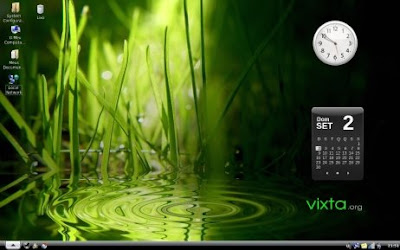
The Windows Vista look alike Linux operating system is Vixta.Org. This distribution has all the features required for a basic computer user.
* It has Office software, Adobe PDF reader, Skype, aMSN, Java
* Vixta.Org also supports multimedia formats like mms, mp3, avi etc
* Vixta.Org also comes with Educational Software Suites, like Gcompris, KDE EDU, Solfege and ChildPlays
Just try Vixta.Org yourself to believe. Download Vixta.Org for free.
Don't forget to subscribe to get more tutorials !
Downloading Vista Service Pack 1
I have to admit that ever since getting this rig June of last year, Windows Vista has severely crashed on me just a couple of times. And both times, slapping on the installer DVD during the startup and restoring a restore point did the job. There are a few quirks that I could really bitch about with Vista but so far, it’s getting the job done. Not that this means something. Since by my experience, Windows XP has done a much better job and I’m confident that even Linux would serve my computing needs well. Anyway, this thing is supposed to contain a chock-full of goodies and improvements. I am holding my breath even if I know I shouldn’t be waiting for any pleasant surprises but I half-expect installing this thing would fuck things up for me. So before I hit OK on Windows Update, I made sure that everything has been backed up. Check out the overview here. I’m currently waiting for Windows Update to finish downloading and installing Windows Vista Service Pack 1. While it has been around for a few days, it was only today that Windows Update prompted me to download it.
Download Windows Vista Service Pack 1.
Microsoft Windows Vista Media Center Test
This new Vista Media Center Edition will be including in the versions Windows Vista Ultimate and Windows Vista Premium; in Windows Vista Home BASIC we will not have multimedia center. The basic functionalities are those that already have come observing during these last year’s within Media Center, TV, DVD, Photos and in general all the related one to the digital entertainment, which if it has improved remarkably is the experience of user and the menus of navigation which now they are from top to bottom and left to right.
Seeing tale and the DVD: The televising experience has improved slightly, the controls are such of always and the functionalities also, now the use of software is more intuitive, the improvements are practically imperceptible. Music, videos, photos… multimedia! Now he is much more intuitive to add folders from the system to the bookstore and is centralized in a single point. The system detects automatically that type of multimedia we are adding so that later he is available in each one of the menus. The interface does not have great improvements in functionalities, but the usabilidad and the interface have given an important qualitative jump. We can see discs of a much more familiar way, being able to order by author, sort, album… The photography’s have a spectacular system of “slideshow” the quality with which we see the material is excellent.
Media Center Extenders: Perhaps we have proven to connect XboX 360 to our Media Center; this is to extend commonest in all the houses, in previous versions Now it is easier that to never connect extenders to the PC, simply with an assistant, introducing the code that indicates Extender to us, the system will be connected automatically.
In summary: The next version of Windows Media Center bring us many surprises, and of course for many Media Center goes has to be one of them, since it continues being one of the great strangers in the world Windows. With the arrival of the digital home integration between TV and PC increases day to day and MC will help us to have all our bookstore perfectly organized multimedia.
Nameless Recycle Bin In Vista
 Everyone knows what the recycle bin icon is, isn’t it ? Then what’s the point in naming it Recycle Bin. Well if you want to remove the name "Recycle Bin", download this small file and run the registry tweaks.
Download From Here: Nameless Recycle Bin
Hope you will like this little but useful trick.
Diagnose And Repair An Unbootable XP Or Vista PC
What to do when your Windows XP or Windows Vista system refuses to boot.
How do I prepare an emergency boot disc so I'm ready in case Windows becomes unbootable?
Alas, the days when Windows came with a program for creating a useful emergency boot floppy are long gone. And those old boot floppies wouldn't help with XP or Vista--even if you PC had a floppy drive.
Boot from one of the discs that came with your PC, and examine the menus (don't select anything that might wipe your drive). You're looking for emergency utilities.
You're in real luck if you have a full Windows XP CD or Vista DVD. These come with great tools for diagnosing and repairing an unbootable PC. In fact, if you don't have a real Windows disc, find one you can borrow in an emergency. Don't install Windows from a borrowed disc, but if it has the same version of Windows as your PC, use its repair tools.
Boot from an XP CD, and press R at the 'Welcome to Setup' screen to see the Recovery Console, a DOS-like command-line environment with a number of useful utilities.
If you boot from a Vista DVD, click Repair your computer to open the System Recover program. There you'll find options to automatically fix boot problems, restore your hard drive from an image backup, diagnose memory, or perform a system restore.
If you're ready for a Windows alternative, try Puppy Linux, which you can download as a ready-to-burn .iso file from the Puppy Linux Web site. Boot from the CD, and you'll have a nongeek's version of Linux running on your PC. Puppy Linux is the best tool I've found for one extremely important job: copying important files off an unbootable hard drive. Unlike UBCD4Win, Puppy recognizes USB drives, making it extremely easy to put these files where you can readily access them.
The XP CD's Boot Tool Kit
Enter these commands in Windows XP's Recovery Console to perform CPR on your disks and files.
| Command | Action |
|---|---|
| Attrib | Changes the attributes of a file or directory. |
| Batch | Executes the commands specified in the text file. |
| Bootcfg | Boot file (boot.ini) configuration and recovery. |
| ChDir (Cd) | Displays the name of the current directory or changes the current directory. |
| Chkdsk | Checks a disk and displays a status report. |
| Cls | Clears the screen. |
| Copy | Copies a single file to another location. |
| Delete (Del) | Deletes one or more files. |
| Dir | Displays a list of files and subdirectories in a directory. |
| Disable | Disables a system service or a device driver. |
| Diskpart | Manages partitions on your hard drives. |
| Enable | Starts or enables a system service or a device driver. |
| Exit | Exits the Recovery Console and restarts your computer. |
| Expand | Extracts a file from a compressed file. |
| Extract | Extracts files from compressed .cab archives. |
| Fixboot | Writes a new partition boot sector onto the specified partition. |
| Fixmbr | Repairs the master boot record of the specified disk. |
| Format | Formats a disk. |
| Help | Displays a list of commands you can use in the Recovery Console. |
| Listsvc | Lists the services and drivers available on the computer. |
| Logon | Logs on to a Windows installation. |
| Map | Displays the drive letter mappings. |
| Mkdir (Md) | Creates a directory. |
| More | Displays a text file. |
| Net Use | Connects a network share to a drive letter. |
| Rename (Ren) | Renames a single file. |
| Rmdir (Rd) | Deletes a directory. |
| Set | Displays and sets environment variables. |
| Systemroot | Sets the current directory to the systemroot directory of the system you are currently logged on to. |
| Type | Displays a text file. |
I hope these will help you :)
Disabling Notification Area Balloon Tips In Windows Vista
 Do the balloon tips keep annoying you? Then don’t worry, here’s how you can disable notification area balloon tips in Windows Vista:
1. First Go to Start > Run and type Regedit.exe
2. Navigate to the following subkey:
HKEY_CURRENT_USER\Software\Microsoft\Windows\CurrentVersion\Explorer\Advanced
3. Create a new REG_DWORD (32 bit) value, and then name it EnableBalloonTips
4. Double-click EnableBalloonTips, and then give it a value of 0
5. Close Regedit.exe
6. Log off Windows, and then log back on.
If you dont want to do the above method you can download the below file and just run it.
Download From Here - Disableballoontips.reg
Source - BizznTech
Adding Windows Vista Fonts In Windows XP & Win2000
 If you are bored of the old XP and Win2000 fonts, then here comes Windows Vista to the rescue. It has some cool and sexy fonts like Candara, Consolas, Calibri, Cambria, Constantia and Corbel, etc. Now you can install these in Windows XP and Windows 2000 as well.
Just follow the instructions given below:
1. First go here and download the Microsoft Compatibility pack (MCP). The MCP is a free utility that allows you open, edit, and save documents, workbooks, and presentations in the file formats new to Microsoft Office Word, Excel, and PowerPoint 2007.
2. Save to desired location and install it.
3. That’s it now you’ll have these vista fonts in all office applications including the previous fonts.
Please comment if you like this post :)
Speed Up SATA Hard Drives & USB Drives In Windows Vista
Window Vista has built in support for SATA and external drives, but they seem to be slow because the advanced write cache features aren’t automatically activated. With just few steps you can enable them and get a much faster response.
First you need to go to the Device Manager which you can go directly by just typing device in the start menu search box or just type in devmgmt.msc in command line.
Now open the Disk drives section and right click on your hard drive. Now click on the Policies tab and you’ll find this dialog box:
Now click the checkbox for Enable advanced performance, and you are done.
Write caching isn’t enabled by default as removing devices directly without using the “Safely remove removable device”may lose your data, so be cautious when enabling this options. But enabling this option also when speeding up performance significantly when writing to the disk.
Now select the external drive and double click it to open up the properties screen. Then
just change the setting to “Optimize for performance” and hit OK to continue. You’ll have to reboot for all the settings to take effect. Next time you boot into Windows Vista you’ll see faster bootup times and better disk writing performance.
[Source - Thinktechno.com]
Remove Windows XP From A Vista/XP Dual Boot
If you just installed and tried out the new MS Windows Vista on your machine, you just might be planning to get the old MS Windows XP out of your computer because of the new features being offered by Windows Vista satisfies your daily computing needs. The boot loader process bundled with Vista has changed, yes, but the changes are so minor the steps to configure other OS versions installed on your computer are basically similar to that of MS Windows XP.
First, just boot up and choose MS Windows Vista. Afterwards, format the Windows XP partition. The bootloader process of Vista allows you to make necessary changes on the boot operations of your machine without configuring the boot.ini file of the Windows XP OS version installed on your computer.
Next, insert the Vista CD 1 or the Vista DVD in your drive. Reboot your computer afterwards. Finally, choose the repair console option after the setup process has commenced, choose to have access to a DOS prompt, and key in the following:
• bootrec.exe /fixmbr
• bootrec.exe /fixboot
Key in the first command and execute it by pressing the Enter key. This will remove XP from the Vista bootloader. Then, key in the second command in order to ensure that XP has been unloaded from the boot.ini file of Vista. At this point, Windows XP is history!
Give Yourself Higher Rank In Vista
The first time many of us opened up the Windows Experience Index (WEI) and saw the pitiful score, we were ticked off .
As you learn more about how the rating works, however, the score probably won't sting as much. To calculate the WEI, Vista takes the lowest of five scores that relate to your processor, RAM and so on. Maybe that's the goal of the WEI -- to embarrass or anger us into spending more money on better hardware.
There are a couple of ways to increase your rating . First off, run the test again. Sometimes just running it again will boost you over the three mark. Another tip is to turn off your Aero glass interface, which will boost performance. Or, you could go right into the .XML file that stores the results and give yourself a higher score.
The Windows System Assessment Tool (WinSAT), which is the tool that calculates the WEI, stores its output in the
%systemroot%\Performance\WinSAT\DataStore. Each time you run WinSAT, it creates a new XML file and stores it in this folder with the assessment date at the beginning of the file name.
To change your ratings , you will have to do a little hack .
Open the file using WordPad and change the top five scores to whatever number you like and close the file. When you go to look at your WEI settings again, it should show you the new number.
To revert this back to the original , just run the Performance test again.
Frm-
@shish {Cool Wizard}
Speed Up Vista
Here are few techniques that can help speed up your Vista system in minutes ..
1. Disable the Indexing Service ..
Indexing services in Windows Vista indexes all the files and folders for faster access. It basically makes search function faster. By default all files are indexed, but you probably won’t need that. It is recommended that you should disable the indexing service on all the items other than the start menu. To speed up Vista, follow these steps:
* Select Start and type "index options", without quotations
* After the Indexing Options are loaded, click the Modify button.
* Then click Show all Locations
* A list of locations will be displayed in the form of a tree. Uncheck those folders which you do not want to be indexed. You can also use the Advanced button to specify file types to be indexed, but this part is optional.
* Click OK button to finalize.
2. Enable advanced write caching ..
Vista comes with built-in support for SATA (Serial ATA) hard drives. By default Vista does not enable write caching. To improve your data retrieval speed you must enable the write caching. Just follow these steps:
* Go to the hard drive properties
* Select the Policies tab
* Select the radio button labeled Optimize for performance.
* Check the boxes titled “Enable write caching on the disk” and “Enable Advance Performance”
* Click OK button to finish.
3. Speed up Start Menu Search ..
The good old MSCONFIG option is available in Vista as well. Lots of crappy programs load at boot time which consume large amount of memory and processor. To tweak follow these steps:
* Go to Start>Run or press Windows + R
* Type “msconfig” and click OK
* The System Configuration dialogue box will be displayed, select the Startup
* You will see list of checkboxes, most of them will be checked. Uncheck those ones which are not needed. More unchecked boxes will lead to better performance.
* Click OK button to finish this tweaking step.
4. Stop extra services ..
There are lots of services that are automatically started by default in Vista. Many such services are of no use for the user. There are services that get automatically added to the list when you install different third party software. They consume lots of RAM and processor. To speed up just follow these steps:
* Go to Start>Run and type “msconfig” without quotations.
* System Configuration window will be displayed.
* Go to the Services tab (middle one)
* To be on the safe side check the box “Hide all Microsoft Services”
* Now you will have a reduced version of the list, select ones that you feel are unnecessary.
* Press OK to finish.
There are some Windows Vista’s services that you can disable without any glitch:
* Windows Error Reporting
* Tablet PC Input Service ( don’t disable if you are using a tablet PC)
* Remote Registry
* Offline Files
* IKE and AuthIP IP Keying Modules
* Distributed Link Tracking Client
* Computer Browser
5. Disable Network Printer Search ..
Disabling network printer search may greatly improve Vista’s performance. When you browse through folders Vista is always looking for network printers. This search ends up in consuming lots of resources. To speed up performance just follow these steps:
* While you are in the explorer (My Computer), go to the Tools menu
* Select Folder options
* Go to the View tab
* Uncheck the box named “Automatically search for network printers”
After completing this step you would certainly feel the difference.
6. Use ReadyBoost ..
Frm-
@shish {Cool Wizard}
Crash Windows Vista In 10 Seconds Or Less
Microsoft's Windows Vista operating system is a mighty paradox. On the one hand, it's more robust and feature-rich than any of its predecessors. For the most part, it's also more secure and is immune to many pretty sophisticated takedown attempts. But it's got one nasty Achilles' Heel, which'll enable you to crash the OS in under 10 seconds.
One of the simplest command sequences you can think of will take Vista down completely.
Hold down the Windows key and the letter "E" for 10 seconds or so. The next thing you know, Windows Vista is going berserk. I tried it a while ago and it was so annoying that I had to shut down the PC manually. But it was nice experience.
Frm-
@shish {Cool Wizard}
Revamped Yahoo Messenger : Only for Vista
Hey guys, the new yahoo messenger for Windows Vista is going to be released.
Built from the ground up specifically for Microsoft Windows Vista, this all-new version combines the reliable and easy-to-use features you've always loved from Yahoo! Messenger with the cutting-edge experience of this new operating system.
* Instant message, voice, webcam video, and more
* Use the integrated Yahoo! Messenger Sidebar gadget to keep up with the friends that matter most.
* Also add Windows Live™ Messenger friends to your contact list to see when they're online and IM them
* Keep conversations organized by dragging and dropping them into one tabbed window
* Brand new emoticons, program icons and alert sounds
* Instantly change the look and feel of your Yahoo! Messenger interface
* Automatic groups are created in your contact list based on your Yahoo! interests (i.e. Yahoo! Sports Fantasy Football league)
Stay connected to the people and information that matter most with the Windows Vista™ operating system. Whether on the go or at home, it's now easier and safer to communicate, giving you greater peace of mind.
Check it out here : http://messenger.yahoo.com/windowsvista.php
